New ‘Service Colors’ Feature Makes a Full Calendar Easier To Read at a Glance
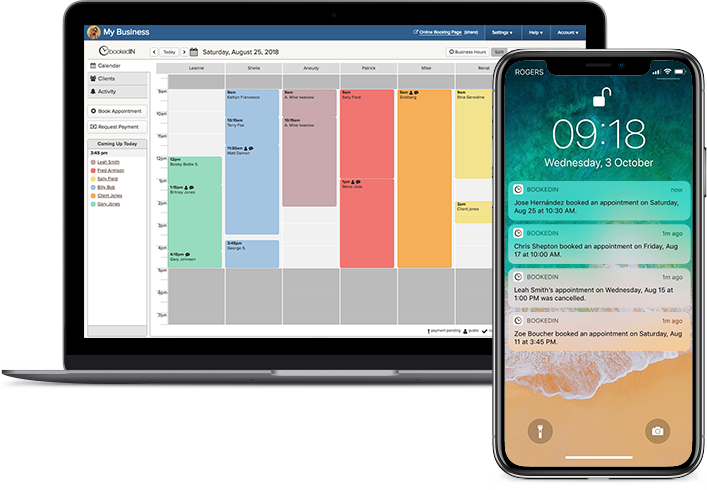
When you check your Bookedin calendar, it helps to know at a glance what your day, week, or month actually looks like.
You want to see not just how full it is, but also what kind of work is filling it: which days are packed with long services, which are mostly quick jobs, and where the gaps are that you could still fill.
That’s what the new Service Colors feature is here to help with. This has been one of the most requested features from Bookedin users, and it’s finally here.
With this feature, you can assign a color to the services you offer, so your calendar is color-coded by appointment type and is easier to scan. It’s available on every Bookedin plan (Free, Plus, and Pro), and you can use it on both web browser and mobile app.
What Can You Expect From This Feature?
Service Colors lets you tag each of your services with a specific color. It’s also completely optional, so you can choose to add a Service Color for every service you offer or just some.
Once that’s set, every appointment for that service shows up on your Bookedin calendar in its assigned Service Color.
That way, you can immediately see which service an appointment is for based on its color. And with every appointment color-coded, you can easily take in your whole day, week, or month at once, even when you’re moving quickly from one thing to the next.
For example, if you’re a salon, your calendar can be color-coded like this: A haircut appointment is in blue, a full color treatment in green, and a consultation in orange. So, you can easily spot which slots are quick in-and-out jobs and which will take hours.
If you have other service staff or a front-desk person, the Service Colors feature even helps keep everyone on the same page. A quick look at the calendar tells them what each appointment is, so there’s less confusion and fewer mix-ups.
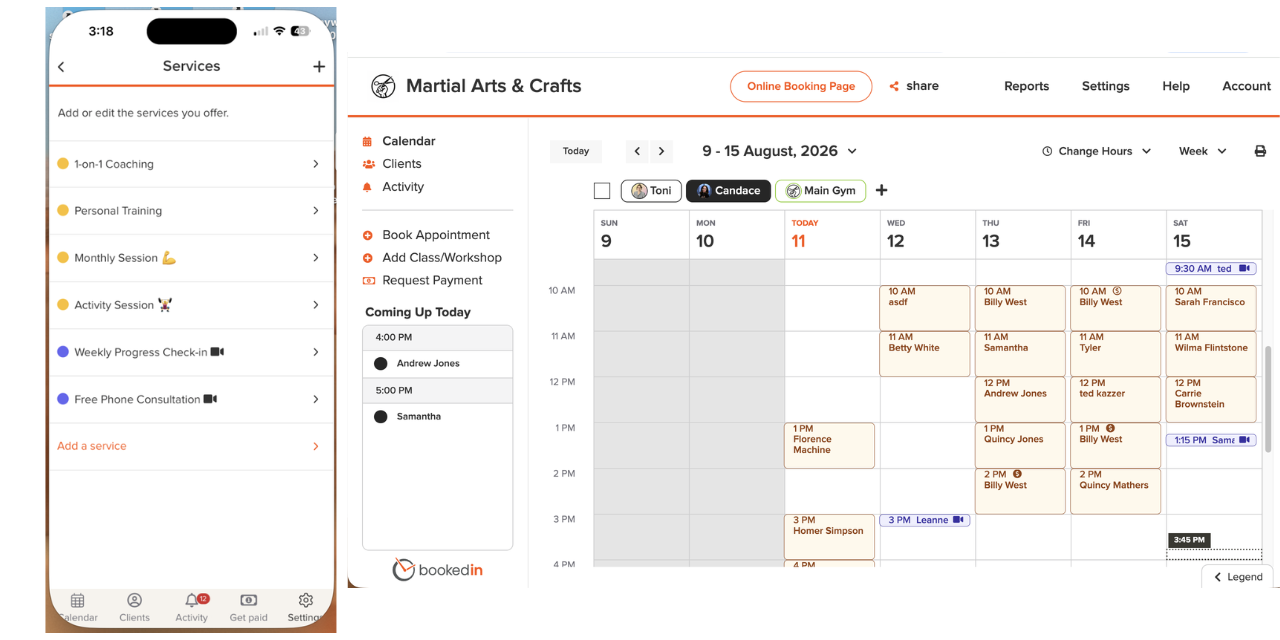
Note: As of writing, this feature only works for appointments (not classes and workshops).
How To Set Up Service Colors
If you’re the Bookedin account owner, or in an Admin or Manager role, follow these steps:
- Log in to your Bookedin account. (If you don’t have one yet, sign up for free). Also, make sure your app is updated to the latest version.
- Go to Settings > Services.
- Select an existing service to edit it, or click the option to add a new one.
- There, you’ll find the Service Color option. Select it, then choose a color.
- Tap Done (on the app) or click Save (on your browser) to apply your changes.
- Repeat this process for other services.
Also read: Appointment Reminder Templates To Use for Your Service Business
So, go give the Service Colors feature a try and set colors especially for the services you get the most bookings for. It’s a simple addition, yes, but it’s one that quietly saves you time.
If you haven’t tried Bookedin yet, you can sign up for free (along with a 14-day trial) and see how much smoother your day runs when your scheduling’s handled.
About the Author

The Bookedin Team is made up of writers, marketers, and people who genuinely understand the day-to-day of running a service business. Our articles cover everything from scheduling and client management to marketing and business growth — because running a service business is no small feat.